Choosing the best Lcd Monitor for a business is not a simple size comparison. It is a workplace decision involving eyes, energy, software, and long-term cost. A bright 27-inch panel may look impressive in a showroom. However, its glare can become tiring beside a sunlit window.
IDC’s Worldwide Quarterly PC Monitor Tracker reported global monitor shipments of approximately 122 million units in 2024, showing that business display demand remains substantial. TrendForce also reported rapid growth in OLED monitor shipments, although OLED models often cost more and may require careful consideration for static office interfaces. These figures suggest a changing market, not an automatic reason to buy premium technology.
Ross Young, co-founder and chief executive of Display Supply Chain Consultants, has repeatedly described the display sector with a simple warning: “The display industry is cyclical.” That insight matters when companies plan replacements, warranties, and budgets. A purchasing team should compare resolution, refresh rate, USB-C connectivity, ergonomic adjustment, warranty coverage, and measured power consumption. ENERGY STAR data can support more responsible energy decisions, but real office usage still matters.
The right choice depends on the work. Designers may need accurate color and wide-gamut support. Accountants may value sharp text, flicker control, and height adjustment more. Hybrid teams may benefit from USB-C docking and built-in cameras. A cheaper model can become expensive when employees struggle with poor posture or eye fatigue. Yet not every premium feature improves productivity. Careful testing is still necessary.
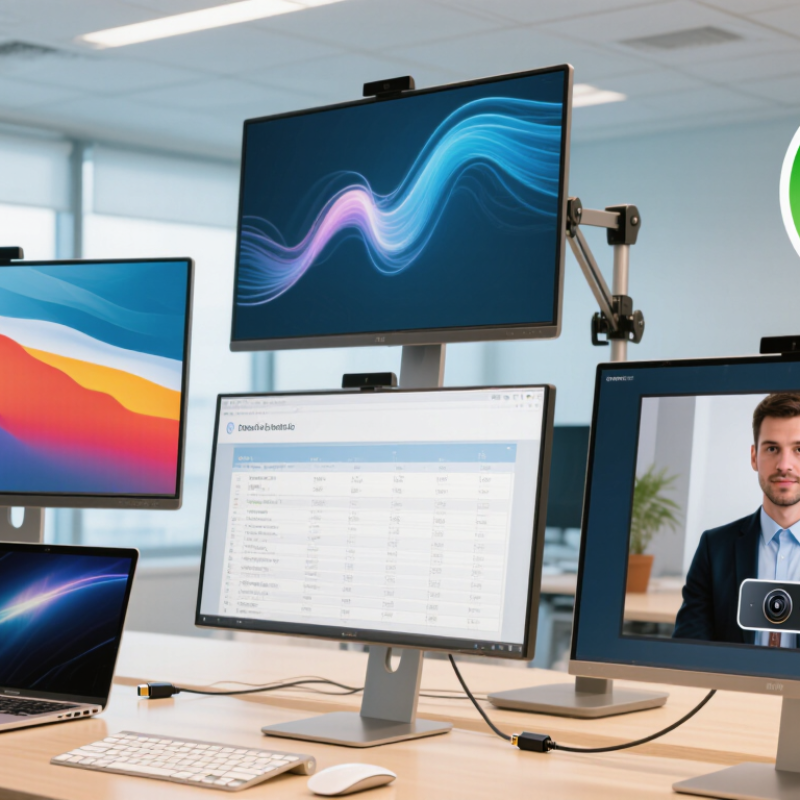
Before comparing LCD monitors, define the work they must support. A finance analyst needs sharp text, stable brightness, and enough workspace for spreadsheets. A designer may require wider color coverage and consistent viewing angles. Customer-service staff may value comfort, simple connections, and easy maintenance more than extreme resolution.
IDC’s Worldwide Quarterly PC Monitor Tracker reported 28.8 million monitor shipments worldwide in the first quarter of 2024, up 3.8% year over year. That demand does not prove every office needs premium displays. It does show how varied business purchasing has become. List the applications, document sizes, connection types, and daily viewing hours first. Then test a sample unit at the actual desk. A spreadsheet can look fine for ten minutes.
Ergonomics deserve measurable requirements. NIOSH research links prolonged computer work with visual and musculoskeletal discomfort, so height adjustment, tilt, viewing distance, and low-glare surfaces should enter the specification. The display should match the computer’s ports, support the required resolution, and offer automatic brightness control only when it behaves reliably. For shared offices, check power consumption and warranty response. ENERGY STAR product data can help compare operating efficiency, but estimated savings may differ from real usage. I would also question curved screens and high refresh rates unless the workflow benefits clearly. More features can create more failure points.
| Business Requirement | Recommended Specification | Suitable Business Use | Important Considerations |
|---|---|---|---|
| Screen Size | 22–24 inches for standard desk work; 27 inches or larger for multitasking | Office administration, customer service, finance, sales, and general productivity | A larger screen can display more content, but it requires more desk space and may increase power consumption. |
| Resolution | 1920 × 1080 for basic office work; 2560 × 1440 or higher for detailed workflows | Document processing, spreadsheets, dashboards, design, engineering, and data analysis | Higher resolution improves workspace and text detail, but the computer must support the required output resolution. |
| Panel Type | IPS or equivalent wide-viewing-angle LCD panel | Shared workstations, collaboration areas, content creation, and professional office environments | Wide viewing angles help maintain consistent image quality when several people view the screen together. |
| Refresh Rate | 60–75 Hz for office work; 100–144 Hz for motion-focused applications | Business software, presentations, video editing, interactive training, and visual content review | A higher refresh rate can make scrolling and motion appear smoother, but it is not essential for most administrative tasks. |
| Response Time | 5–8 ms for general business use; 1–5 ms for fast-moving visual content | Office applications, video playback, digital signage, simulation, and media production | Response time matters most when displaying fast movement. It has limited impact on static documents and spreadsheets. |
| Brightness | 250–300 cd/m² for typical indoor offices; 350 cd/m² or higher for bright rooms | Open-plan offices, meeting rooms, retail counters, reception areas, and control rooms | Excessive brightness may cause eye discomfort in dim rooms. Adjustable brightness is important for changing work environments. |
| Color Accuracy | sRGB coverage suitable for general work; broad-gamut support for professional visual tasks | Marketing, photography, video production, publishing, product design, and brand content creation | Professional color work requires calibration and a consistent color-management workflow, not only high stated color coverage. |
| Connectivity | HDMI and DisplayPort as a baseline; USB-C with power delivery for compatible laptops | Hot-desking, hybrid work, laptop-based teams, conference rooms, and multi-device workplaces | Check video-output compatibility, cable requirements, charging capacity, and the number of devices used by employees. |
| Ergonomics | Height adjustment, tilt, swivel, and VESA mounting support | Full-day workstation use, shared desks, adjustable offices, and multi-monitor setups | Adjustability helps position the screen at a comfortable viewing height and can support healthier desk layouts. |
| Eye-Comfort Features | Flicker-reduction technology, low-blue-light mode, and a matte or low-glare surface | Long-duration document work, coding, data entry, customer support, and remote work | These features may improve comfort, but regular breaks, suitable lighting, and correct viewing distance remain important. |
| Multi-Monitor Support | Thin bezels, compatible ports, and consistent size and resolution across displays | Financial analysis, software development, monitoring, logistics, and research | Use matching displays where possible to reduce differences in scaling, color, brightness, and alignment. |
| Power Efficiency | Automatic sleep mode, efficient LED backlighting, and low standby consumption | Large office deployments, public-sector workspaces, educational facilities, and 24-hour operations | Compare typical and standby energy use across the planned number of monitors to estimate long-term operating costs. |
| Reliability and Support | Documented warranty coverage, service availability, and a consistent fleet configuration | Mission-critical workstations, large-scale deployments, managed IT environments, and remote offices | Evaluate warranty duration, replacement procedures, spare-unit requirements, and compatibility with existing equipment. |
| Security and Manageability | Lockable settings, secure cable management, and centralized asset tracking where required | Healthcare, finance, government, shared workstations, and locations with strict equipment controls | Review organizational policies for physical security, privacy, device labeling, and access to display settings. |
| Procurement Priority | High: Ergonomics and compatibility Medium: Resolution and connectivity Low: Advanced gaming features for office-only tasks | Budget planning, standardization, and large-scale purchasing decisions | Prioritize employee needs, software compatibility, total ownership cost, and deployment consistency over unnecessary specifications. |